
GTA San Andreas Windows 11 Fix – Stop Crashes & Black Screen
If you’re trying to looking for GTA San Andreas Windows 11 Fix because the game keeps crashing, showing a black screen, freezing at the Rockstar logo, or refusing to launch altogether, you’re not alone.
Thousands of players upgrading to modern systems experience compatibility issues because GTA San Andreas was built for a completely different era of hardware.
The game was designed around DirectX 9, Windows XP architecture, and early-2000s GPUs. Windows 11, meanwhile, prioritizes modern memory allocation models, updated security frameworks, and DirectX 12 rendering.
The game isn’t broken.
It’s simply struggling to communicate with a 2026 operating system.
That mismatch causes problems like:
- Game not launching
- Black screen after intro
- Mouse or camera not working
- Crash when pressing ESC
- Low FPS or random stuttering
- Audio glitches
The good news? Every one of these issues is fixable.
In this complete 2026 guide, you’ll learn:
- Why GTA San Andreas struggles on Windows 11
- The exact step-by-step fix order that works
- How to properly install SilentPatch and Widescreen Fix
- Steam vs original version stability differences
- Advanced troubleshooting for stubborn crashes
- The most stable modern setup configuration
This guide combines real user solutions, technical patch knowledge, and structured troubleshooting — so you don’t waste hours testing random fixes.
Let’s start with the root cause.
Why GTA San Andreas Does Not Work Properly on Windows 11?
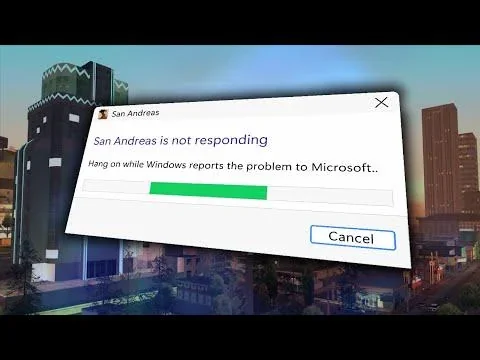
Understanding the core problem makes everything easier to fix.
GTA San Andreas was released in 2004 by Rockstar Games. It runs on a DirectX 9-based engine built for Windows XP-era systems. At the time, multi-core CPUs, high refresh monitors, ultrawide resolutions, and modern GPU drivers didn’t exist.
Now they do — and that’s where conflicts begin.
DirectX 9 Legacy Limitations
Windows 11 still supports DirectX 9 components, but not in the same native way older systems did.
As a result:
- The game may fail to detect modern rendering APIs
- Legacy components like DirectPlay are disabled by default
- Fullscreen behavior can break
- Intro logo crashes may occur
- Audio libraries may not load properly
Windows 11 prioritizes DirectX 12 and newer driver models, while GTA SA expects legacy libraries. That mismatch often results in black screens or instant crashes.
Modern Hardware Conflicts
Ironically, powerful hardware can make things worse.
Common conflicts include:
- 144Hz / 240Hz monitors are causing physics glitches
- High-DPI scaling is breaking menus or mouse input
- NVIDIA RTX and Intel UHD drivers are conflicting with old rendering methods
- Multi-core CPUs triggering engine timing issues
- Ultrawide monitors are distorting aspect ratios
The game wasn’t built for this environment — which is why stability patches are essential.
Steam & Launcher Complications
Even you arre using the Steam version via Steam or the Rockstar Launcher, additional problems may occur.
Over the years, updates:
- Modified original executable files
- Removed certain legacy components
- Broke mod compatibility
- Increased startup instability
In many cases, the Steam version performs best after downgrading to version 1.0.
Common GTA San Andreas Problems on Windows 11
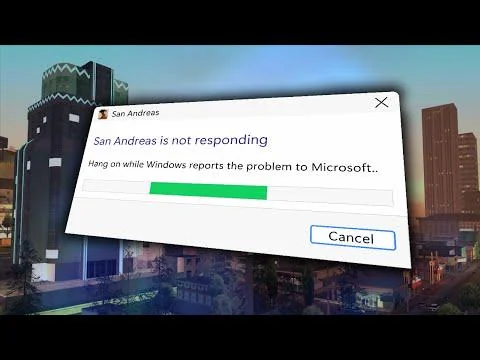
Most players don’t experience just one issue — they encounter multiple, depending on their setup.
Game Not Launching
You double-click the icon. Nothing happens.
Or the game briefly opens and closes instantly.
Common causes:
- DirectPlay disabled
- Missing Visual C++ components
- Incompatible executable version
- Corrupted configuration files
- Windows security restrictions
This is usually resolved with legacy component activation and compatibility adjustments.
Black Screen After Rockstar Logo
The game appears to launch, but:
- The screen stays black
- Resolution looks distorted
- Audio plays, but no visuals appear
- Game freezes on intro
This typically happens due to fullscreen conflicts, resolution mismatches, or broken widescreen handling.
Mouse or Camera Not Working
Symptoms include:
- The mouse doesn’t move in menus
- The camera won’t rotate
- Mouse works in the menu but not in gameplay
- Sensitivity feels erratic
This is often tied to high polling rate mice, timing conflicts, or missing engine fixes.
Crash When Pressing ESC
A classic Windows 11 issue.
You press ESC to open the pause menu — instant crash.
Mainly, it usually indicates:
- Memory handling conflicts
- Outdated executable
- Missing SilentPatch
- Steam overlay interference
ESC crashes are a strong signal that proper patching is required.
Low FPS or Random Stuttering
Even on high-end RTX systems, you may experience:
- Micro-stutters
- Physics instability
- Cutscene lag
- Unstable frame pacing
The reason? The engine ties physics to frame timing. Extremely high FPS can destabilize gameplay.
If you prefer not to follow the step-by-step fixes, you can download the GTA San Andreas lag & error free PC version for a smoother experience.
Before You Start — Required Files & Tools
GTA San Andreas runs best on Windows 11 with essential stability tools. These are not cosmetic mods — they are engine-level corrections.
SilentPatch (Most Important)
Fixes:
- Random crashes
- ESC menu crash
- Mouse issues
- Memory bugs
- Frame timing errors
If you install only one fix, install SilentPatch.
Widescreen Fix
Corrects:
- Aspect ratio
- Field of view
- Resolution scaling
- High-DPI handling
Without it, modern monitors will display improperly.
DirectX 9 Runtime
Ensures that the engine’s required legacy libraries are present.
Prevents:
- Startup crashes
- Missing DLL errors
- Audio failures
Visual C++ Redistributables
Required by both the game and patches to prevent instant crashes.
Step-by-Step GTA San Andreas Windows 11 Fix
Follow this order exactly.
Skipping steps is the main reason players still face instability.
Step 1 — Enable DirectPlay
Press Windows + R
Type: optionalfeatures
Enable Legacy Components → DirectPlay
Restart PC
This alone fixes many launch failures.
Step 2 — Enable Compatibility Mode
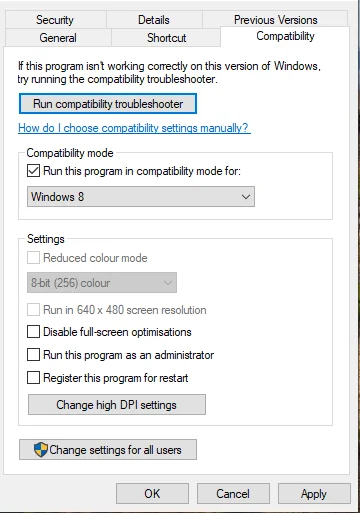
Right-click gta_sa.exe → Properties → Compatibility
Enable:
- Windows 7 compatibility
- Disable fullscreen optimizations
- Run as administrator
Apply changes.
Step 3 — Install SilentPatch

Extract files into the main GTA folder.
Replace if prompted.
instantly stabilizes memory and menu rendering.
Step 4 — Install Widescreen Fix
Copy files into the game directory.
Set your monitor resolution manually inside the config.
Help in resolving most display issues.
Step 5 — Steam Users:
If using Steam, downgrade to version 1.0.
Then reinstall:
- SilentPatch
- Widescreen Fix
This restores full compatibility.
Step 6 — Cap FPS at 60
Enable built-in frame limiter or use a safe FPS cap.
Avoid:
- 120+ FPS
- 144Hz uncapped
Uncapped frame rates break physics and stability.
Steam vs Original Version — Which Is More Stable?
| Feature | Steam Version | Original Version |
|---|---|---|
| Stability | Moderate (can have bugs/issues) | ✅ More stable overall |
| Mod Compatibility | ❌ Limited / many mods don’t work | ✅ Best for mods (high compatibility) |
| Music & Content | ❌ Some songs removed due to licensing | ✅ Full original soundtrack |
| Performance | Good, but sometimes inconsistent | ✅ Smooth and consistent |
| Updates | Updated version with changes | ❌ No updates (pure original experience) |
| Controls Support | Updated input system (XInput) | Older controls (DirectInput support) |
| Modding Community Preference | ❌ Not recommended for heavy modding | ✅ Most preferred version |
| Overall Experience | Convenient but limited | ✅ Classic + best experience |
To enjoy the classic version without limitations, make sure you install the correct PC version. Check out our GTA San Andreas PC free download page for a safe and easy setup.
Advanced Fixes (If Issues Persist)
If your issue is still not fixed, move to the Advanced Fixes (If Issues Persist) section and carefully apply the additional troubleshooting methods included in this GTA San Andreas Windows 11 Fix guide.
These advanced adjustments target deeper compatibility conflicts that some systems experience. Once properly configured, you’ll be able to play GTA San Andreas on Windows 11 stable, optimized, and fully functional without recurring problems.
Black Screen Reset
Delete:
Documents → GTA San Andreas User Files → gta_sa.set
Relaunch the game.
High DPI Scaling Fix
Right-click gta_sa.exe → Compatibility → Change High DPI Settings
Enable:
- Override high DPI scaling
- Set scaling performed by the Application
Mouse Fix
Lower polling rate to 125Hz or 250Hz via the mouse software.
Disable overlays:
- Steam
- Xbox Game Bar
- NVIDIA overlay
NVIDIA Optimization
NVIDIA Control Panel:
- Power Management → Prefer Maximum Performance
- Disable G-Sync for the game
- Turn off Image Scaling
Best Stable GTA San Andreas Setup for Windows 11 (2026)
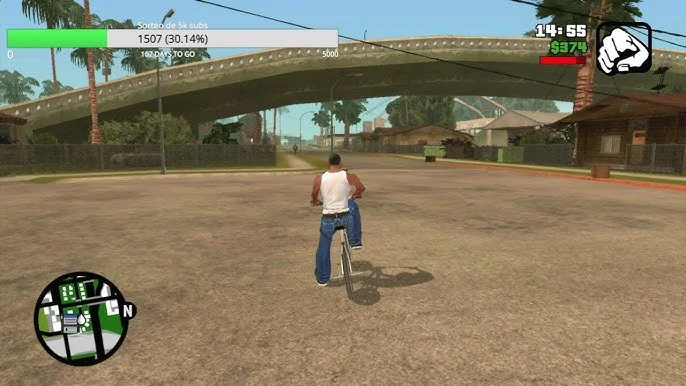
For a crash-free experience:
✔ Clean 1.0 version
✔ SilentPatch installed
✔ Widescreen Fix configured
✔ DirectPlay enabled
✔ Windows 7 compatibility mode
✔ Fullscreen optimization disabled
✔ FPS capped at 60
✔ No heavy graphics mods
Avoid large ENB packs or outdated CLEO scripts if stability is your priority.
Performance Optimization Tips
Even after fixing crashes, smoothness can improve further.
Use Borderless Windowed Mode
Often more stable than exclusive full-screen on Windows 11.
Benefits:
- Fewer alt-tab crashes
- Better multi-monitor handling
- Reduced black screen issues
Reduce Micro-Stutter
- Disable overlays
- Use High Performance power mode
- Slightly lower draw distance (70–80%)
Small adjustments can significantly smooth frame pacing.
Frequently Asked Questions
However, with proper patches installed, it runs stable on Windows 11.
These bugs become visible on modern CPUs and GPUs.
It restores compatibility with essential fixes like SilentPatch.
Keeping FPS capped at 60 prevents glitches and crashes.
Final Thoughts
When properly configured, GTA San Andreas runs smoothly on Windows 11 — even from low end specs to modern RTX systems.
The key is not throwing random fixes at the problem.
It’s applying the correct stability ladder:
Legacy components → Compatibility settings → SilentPatch → Widescreen Fix → FPS control.
Do that, keep your setup clean, and this 2004 classic will run reliably in 2026 and beyond.
One Comment