GTA San Andreas Lag Fix PC (Windows 7–11 Complete Guide)
Grand Theft Auto: San Andreas was originally built for early-2000s computers. At that time, hardware was slower, operating systems were simpler, and game engines were designed around fixed performance expectations.
The physics system, animations, and camera behavior all depend on steady frame timing rather than extreme processing power.
Modern versions of Microsoft Windows — including Windows 7, 10, and 11 — manage resources very differently. They introduce full-screen optimizations, background performance scaling, and layered graphics handling that older engines were never designed to work with.
As a result, even powerful gaming PCs can experience stuttering, input delay, or unstable gameplay.
High FPS numbers do not automatically mean smooth performance. In fact, inconsistent frame pacing can make the game feel worse on modern hardware than it did on older systems.
This guide explains how to properly fix lag on PC without using mods, restoring stable, responsive gameplay the way it was meant to feel.
Why GTA San Andreas Lags on Modern PCs?
Even though modern PCs are far more powerful than early-2000s systems, Grand Theft Auto: San Andreas can still feel unstable. The reason is not weak hardware — it is compatibility behavior. The game engine was designed around predictable system timing, while modern versions of Microsoft Windows dynamically adjust performance in real time.
When an old engine meets modern resource management, frame delivery becomes inconsistent. The result is stuttering, input lag, and unstable camera movement, even when the FPS appears high.
Many players struggle with missions not just because of difficulty, but due to lag and low FPS. In missions like Wrong Side of the Tracks, even small performance issues can affect your ability to complete objectives successfully.
Legacy Engine & Frame Timing Dependency
GTA San Andreas was built on a legacy engine in which gameplay systems are tightly coupled with frame pacing. Character animations, vehicle physics, camera movement, and even collision behavior depend on stable frame timing rather than raw performance.
It means the engine expects a consistent rhythm between frames. When frame pacing becomes irregular, physics synchronization begins to break. Movements may feel slightly delayed, cars can behave unpredictably, and the camera may appear heavy or sluggish.
A stable range between 30–60 FPS is generally recommended because it maintains proper physics timing. Extremely high refresh rate displays (144Hz or 240Hz) can sometimes push the engine beyond its intended behavior.
While the FPS counter may show large numbers, unstable refresh rates can increase input latency and cause subtle instability.
In simple terms, consistent frame pacing matters more than maximum FPS.
Windows Optimization Conflicts
Modern Windows systems prioritize efficiency and graphical enhancements. However, these optimizations can interfere with older engines.
One major factor is the Desktop Window Manager (DWM). DWM adds a compositing layer between the game and your display. While this improves visuals in modern applications, it can introduce input buffering in legacy titles.
Fullscreen optimization is another layer that attempts to enhance performance automatically. Instead of improving stability, it may cause inconsistent frame delivery and micro-stutter in older games.
Additionally, GTA San Andreas relies on older DirectX rendering behavior. Modern API translation layers and background resource management can alter how the game communicates with hardware. Windows constantly adjusts CPU and GPU power states to improve efficiency, but those fluctuations disrupt the steady timing the engine expects.
The conflict is not about power — it is about synchronization.
High FPS vs Stable Performance
Many players assume higher FPS automatically means better gameplay in modern competitive games; that is often true. However, GTA San Andreas behaves differently.
Raw FPS measures the number of frames rendered per second. It does not measure how evenly those frames are delivered. Frame consistency is what determines smoothness. If frames are delivered unevenly, the result is micro-stutter — small interruptions that make gameplay feel choppy.
Unstable frame pacing also increases input delay. You might notice a slight delay when moving the mouse before the camera responds. Even though the FPS counter looks high, the experience feels off.
Stable performance means:
- Even frame delivery
- Proper physics synchronization
- Reduced input latency
- Smooth camera response
For GTA San Andreas, controlled and consistent FPS produces a far better experience than uncontrolled high frame rates.
Common Performance Issues
When running Grand Theft Auto: San Andreas on modern PCs, most players report similar problems. These issues are rarely caused by weak hardware. Instead, they are symptoms of unstable frame pacing, compatibility conflicts, or inconsistent resource allocation inside Microsoft Windows.
Before doing GTA San Andreas lag fix pc, first we need to learn about what kind of common issue are which are reducing game perfomance.
Below are the most common performance problems players experience.
Stuttering While Driving Fast
One of the most noticeable issues is stuttering while driving at high speed. As you move quickly through Los Santos or countryside highways, the game may briefly freeze or hitch for a fraction of a second, commonly described as GTA SA stutter.
Mostly happens because the engine loads map assets dynamically while maintaining physics calculations. If frame pacing becomes inconsistent during rapid movement, asset streaming and physics updates fall slightly out of sync. The result is small, frequent interruptions that disrupt smooth driving.
Even on powerful GPUs from NVIDIA or AMD, unstable frame delivery can cause visible stutter. The issue is timing instability, not graphical power.
Mouse Movement Delay
Another common complaint is heavy or delayed camera movement. Players often describe this as San Andreas input lag.
You move the mouse, but the camera responds slightly late or feels less responsive than expected. This delay is usually linked to fullscreen optimization conflicts, input buffering from the Desktop Window Manager, or irregular frame pacing.
Because GTA San Andreas ties camera movement closely to frame timing, inconsistent frame delivery increases input latency. The FPS counter may appear stable, yet the gameplay feels sluggish.
This issue is especially noticeable in combat situations or when aiming weapons.
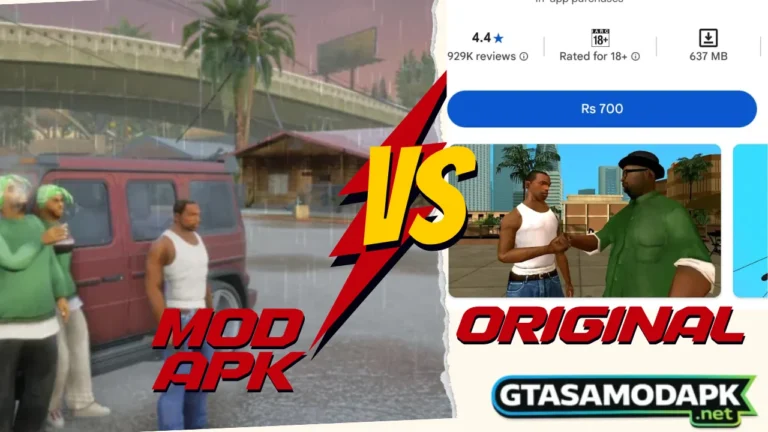
Instead of dealing with constant lag, many players switch to the GTA San Andreas Mod APK for better performance and added features. It’s a great option if you want smoother gameplay on Android.
Micro-Freezes on Powerful PCs
Some players experience very short pauses — lasting less than a second — that feel like tiny freezes. These micro-freezes are different from low FPS. The game normally runs at high frame rates but occasionally pauses for a brief moment.
This can happen due to:
- Background application interrupts
- Inconsistent CPU scheduling
- Storage access delays (especially on HDDs)
Even powerful systems are not immune. The engine was never designed for modern multitasking environments where multiple services operate simultaneously.
These small interruptions may seem minor, but over time, they significantly reduce overall smoothness and immersion.
If you’re using Windows 11 and facing crashes, black screens, or the game not launching at all, you’re not alone. Follow the complete GTA San Andreas Windows 11 fix guide to solve these issues and run the game smoothly.
Understanding these common symptoms makes it easier to apply the correct fixes. The goal is not to increase maximum FPS, but to eliminate instability that causes GTA SA stutter, FPS drops, and input delay.
Step-by-Step GTA San Andreas Lag Fix (No Mods)
The following adjustments correct compatibility conflicts and stabilize frame pacing without installing any modifications. These steps focus on restoring predictable behavior inside Microsoft Windows so Grand Theft Auto: San Andreas can run smoothly.
Follow them for the best results of GTA San Andreas lag fix pc .
Step 1 – Enable Compatibility Mode
Steps:
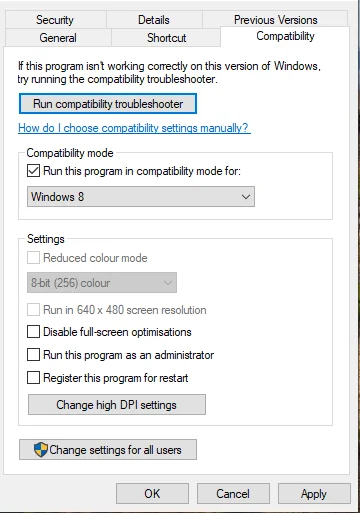
- Right-click gta_sa.exe
- Click Properties → Open Compatibility tab
- Enable Run this program in compatibility mode
- Select Windows 7
Compatibility mode simulates an older Windows environment that better matches the operating conditions the game was originally built for. It reduces differences in modern API behavior, prevents certain background optimizations, and restores legacy execution patterns.
This adjustment helps stabilize timing, reduces unexpected input delay, and improves overall engine behavior consistency.
Disable Fullscreen Optimization
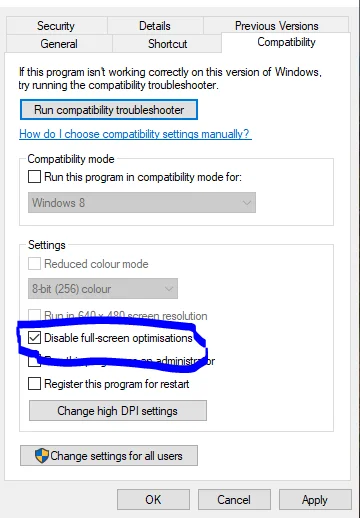
Inside the same Compatibility tab:
- Check Disable fullscreen optimizations
- Enable Run this program as Administrator
Modern Windows uses the Desktop Window Manager (DWM) to control full-screen applications. This creates an additional compositing layer between the game and the display, which can introduce input buffering and micro-stutter.
Disabling full-screen optimization reduces DWM interference and allows more direct communication between the game engine and your graphics hardware. Running as Administrator ensures background permission limitations do not restrict the game.
Together, these adjustments improve frame pacing and reduce input latency & also play role 40 % of GTA San Andreas Lag Fix PC .
Step 3 – Enable DirectPlay
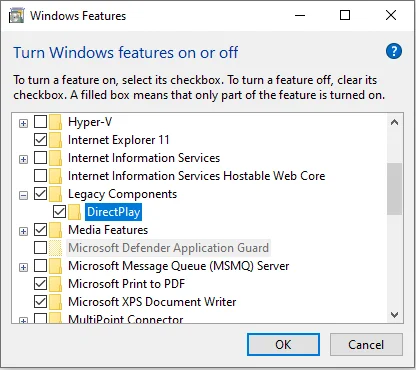
Steps:
- Open Control Panel
- Go to Programs
- Click Turn Windows Features On or Off
- Expand Legacy Components
- Enable DirectPlay
- Restart your PC
GTA San Andreas relies on older legacy components that are disabled by default in newer Windows versions. Enabling DirectPlay restores part of the compatibility layer required by classic titles.
While DirectPlay is not directly responsible for FPS performance, enabling it improves stability and reduces unusual behavior caused by missing legacy support services.
Configure Frame Limiter Properly
Steps:
- Launch the game
- Open Options → Display Settings
- Adjust the Frame Limiter
San Andreas performs best within a stable 30–60 FPS range. Extremely high frame rates may cause physics instability, animation glitches, and inconsistent camera movement.
The goal is not maximum FPS, but consistent FPS. Stable frame pacing ensures proper physics synchronization and smoother gameplay. If your monitor has a high refresh rate (144Hz or higher), keeping frame output under control prevents timing irregularities.
Consistency always beats raw speed for this engine.
Optimize Graphics Settings
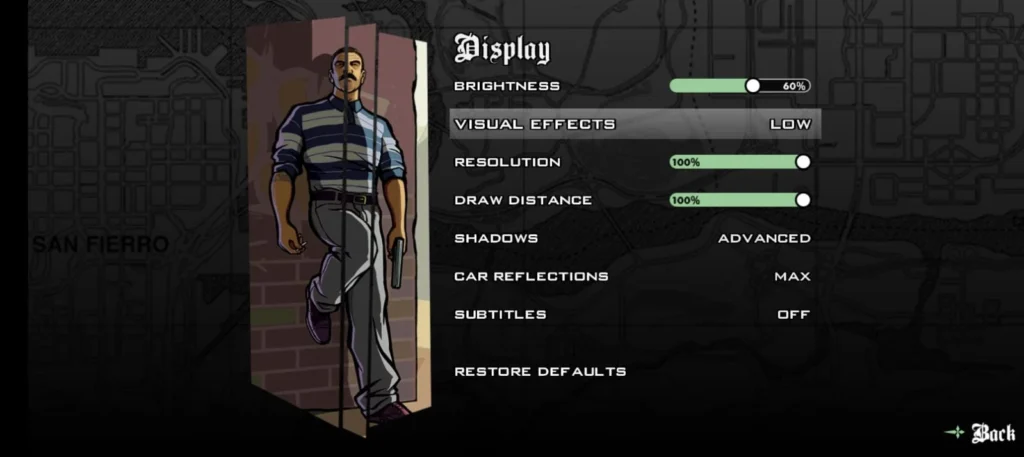
Recommended Configuration:
- Resolution: Native monitor resolution
- Visual Effects: Medium
- Draw Distance: 40–60%
- Anti-Aliasing: Off (if stuttering occurs)
Reducing draw distance lowers asset streaming pressure while driving. Medium visual effects prevent unnecessary GPU strain without noticeably reducing visual quality.
Whether you use hardware from NVIDIA or AMD, the key is workload balancing. Smooth, consistent GPU utilization yields better frame stability than maxed-out settings.
Step 6 – Install Outside Program Files
Install the game in a simple directory such as:
C:\Games\GTA San Andreas
Windows applies stricter permission controls inside the “Program Files” directory, which can restrict file access or introduce minor background checks that affect performance consistency.
Installing outside this folder ensures smoother file access, fewer permission conflicts, and more stable game execution.
Step 7 – Disable Overlays
Disable unnecessary overlays, including:
- Xbox Game Bar
- Steam Overlay
- GPU overlays (NVIDIA or AMD control panels)
- Discord Overlay
Overlays inject additional rendering layers into the game process. While modern titles handle this efficiently, older engines may experience input latency or frame-pacing disruptions.
Removing overlays reduces the number of background rendering hooks, resulting in smoother input response and fewer micro-stutters.
Step 8 – Enable High Performance Graphics Mode
Steps:
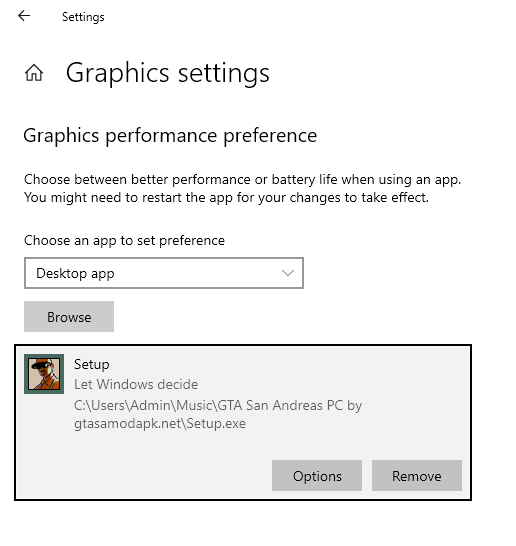
- Open Settings
- Go to System → Display → Graphics
- Add gta_sa.exe
- Set to High Performance
This forces Windows to prioritize the dedicated GPU and prevents dynamic power scaling from limiting performance.
By maintaining stable CPU and GPU prioritization, the System avoids sudden clock fluctuations that can cause frame inconsistency, improving overall smoothness, especially during demanding scenes.
After doing these eight steps work together to restore stable GTA San Andreas Lag Fix PC frame pacing, reduce input latency, and eliminate common causes of stutter — all without installing any mods.
Want smoother gameplay without fixing problems one by one? Download the optimized lag-free GTA San Andreas PC version.
Advanced Stability Optimization

After applying the core GTA San Andreas Lag Fix PC fixes, you can further improve smoothness by stabilizing how your System delivers frames. These adjustments focus on consistency rather than increasing FPS. For a legacy engine like Grand Theft Auto: San Andreas, stable timing is far more important than maximum output.
Set Monitor Refresh Rate to 60Hz
Modern gaming monitors often run at 144Hz or higher, up to 240Hz. While this benefits modern competitive games, older engines were not designed for extremely high refresh rates.
When your monitor refresh rate exceeds what the engine expects, frame pacing can become inconsistent. This may cause subtle physics instability, camera irregularities, or uneven motion.
Setting your display refresh rate to 60Hz helps align frame delivery with the engine’s internal timing logic. This improves physics synchronization and reduces small instabilities that occur at higher refresh rates.
For GTA San Andreas, controlled output typically produces smoother gameplay than ultra-high refresh behavior.
Disable Variable Refresh Rate (VRR)
If your System supports Variable Refresh Rate technology, consider disabling it while playing.
Common VRR technologies include:
- G-Sync from NVIDIA
- FreeSync from AMD
VRR dynamically adjusts your monitor’s refresh rate to match the frame rate of the content. While this is excellent for modern engines, it can conflict with older titles that rely on predictable frame pacing.
Disabling VRR ensures a fixed refresh rate & help in GTA San Andreas Lag Fix PC , reducing unexpected timing variations and improving input stability in San Andreas.
Reduce Background CPU Usage
Modern versions of Microsoft Windows constantly manage background services, updates, and scheduled tasks. Even small CPU interruptions can disrupt frame consistency in older engines.
Before launching the game:
- Close unnecessary applications
- Disable heavy startup programs
- Avoid running downloads in the background
Reducing background CPU load prevents sudden performance spikes or clock speed fluctuations. This helps maintain steady frame pacing and reduces micro-stutter during gameplay.
Maintain Stable GPU Clock Speeds
Modern GPUs dynamically adjust clock speeds to save power. While this improves efficiency, aggressive power-saving modes can introduce sudden performance changes.
Inside your GPU control panel:
- Avoid extreme power-saving profiles
- Use “Normal” or “High Performance” mode
- Prevent automatic underclocking during gameplay
Stable GPU clock behavior ensures consistent frame delivery. When clock speeds fluctuate too aggressively, the result can be uneven frame timing — even if average FPS remains high.
Maintaining stable clocks helps preserve smooth camera movement, accurate physics behavior, and responsive controls.
GTA San Andreas PC System Requirements
Before applying the complete GTA San Andreas lag fix PC process, it is important to understand one key fact: the game does not require powerful hardware.
Grand Theft Auto: San Andreas was released in 2004, and its official requirements were designed for very modest systems. Nearly all modern PCs exceed those specifications by a massive margin. However, smooth gameplay today depends more on system stability than raw hardware strength.
Below is a comparison between the original requirements and what is recommended for stable performance on modern versions of Microsoft Windows.
Minimum vs Recommended for Stable Performance
| Component | Official Minimum (2004) | Recommended for Smooth Gameplay (Windows 7–11) |
|---|---|---|
| Operating System | Windows 2000 / XP | Windows 7, 10, or 11 (64-bit) |
| Processor (CPU) | 1 GHz Intel Pentium III / AMD Athlon | Dual-Core 2.0 GHz or higher |
| RAM | 256 MB | 2–4 GB RAM |
| Graphics Card (GPU) | 64 MB DirectX 9 compatible | Any modern Integrated GPU or Dedicated GPU |
| Graphics Support | DirectX 9.0 | Latest DirectX supported by Windows |
| Storage | 4.7 GB HDD | SSD recommended |
| Sound Card | DirectX 9 compatible | Any modern onboard audio |
Most modern GPUs from NVIDIA, AMD, or even integrated graphics exceed these requirements easily.
Why Hardware Is Not the Real Problem?
If your PC meets even the recommended column above, performance instability is rarely caused by weak components.
Instead, GTA San Andreas lag on PC typically results from:
- Frame pacing instability
- Modern Windows optimization conflicts
- Background CPU scheduling
- Refresh rate mismatch
- Overlay interference
That is why this guide focuses on configuration rather than upgrades.
Even a low-end modern PC can run GTA San Andreas smoothly when:
- Compatibility mode is enabled
- Fullscreen optimization is disabled
- Background load is minimized
The goal of this GTA San Andreas lag fix PC strategy is not to increase hardware power, but to restore predictable engine behavior.
Common Mistakes That Worsen Lag
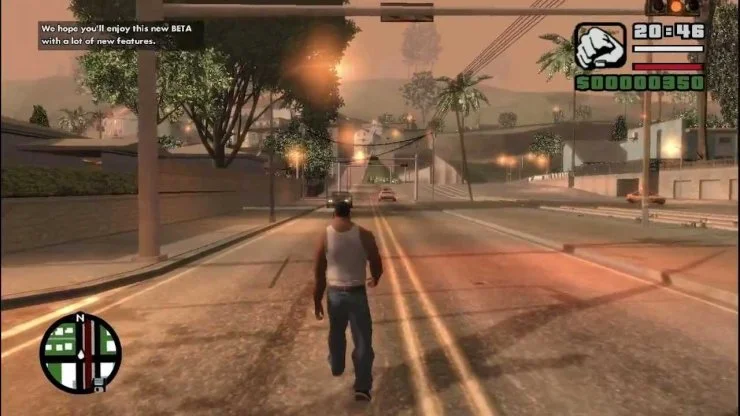
When trying to fix GTA San Andreas Lag Fix PC performance issues, many players unintentionally make changes that actually reduce stability. Because the game was designed for older hardware and simpler system environments, aggressive tweaks often create more problems than they solve.
Understanding what not to do is just as important as applying the correct fixes.
Unlocking FPS Without Understanding Physics Limits
One of the most common mistakes is unlocking the frame rate without understanding how the engine works.
San Andreas ties multiple gameplay systems to frame timing. Character animations, vehicle suspension behavior, and camera responsiveness rely on stable frame pacing. When FPS is pushed too high — especially on high refresh rate monitors — physics synchronization can break.
Common problems caused by excessive FPS:
- Vehicles behaving unpredictably
- Camera movement feels unstable.
- Increased input latency
- Random micro-stutters despite high FPS
Many players assume that 120+ FPS automatically improves smoothness. In reality, inconsistent frame delivery at high refresh rates can cause more instability than a locked, consistent 60 FPS.
This engine was not built for unlimited rendering speed. Stability matters more than maximum numbers.
Using Heavy Graphics Enhancements
Another frequent mistake is installing heavy visual upgrades or forcing ultra settings.
San Andreas was never designed for modern high-resolution texture packs or advanced shader effects. While some enhancements may look appealing, they significantly increase GPU workload and can cause asset streaming delays and sudden frame pacing interruptions.
Even with powerful GPUs from NVIDIA or AMD, the engine’s architecture remains limited.
Common consequences of heavy enhancements:
- Increased GTA SA stutter while driving
- Longer loading times
- Micro-freezes during explosions or crowded scenes
The goal should always be balanced workload distribution, not maximum visual intensity. Older engines benefit from simplicity.
Running Multiple Overlays Simultaneously
Overlays may seem harmless, but they inject additional rendering layers into the game process.
Examples include:
- Steam Overlay
- Xbox Game Bar
- GPU performance overlays
- Discord Overlay
Each overlay hooks into the graphics pipeline and consumes system resources. Modern games are built to handle this behavior efficiently. However, older titles like San Andreas may experience input lag and frame-rate instability when multiple overlays run simultaneously.
- Effects of overlay stacking:
- Increased input latency
- Micro-stutter during transitions
- Inconsistent frame delivery
Reducing overlays allows more direct communication between the engine and hardware, improving responsiveness and smoothness.
Changing Too Many Settings at Once
When troubleshooting performance, many players adjust multiple settings simultaneously. They may change resolution, refresh rate, compatibility options, GPU profiles, and in-game graphics all at once.
This creates two problems:
- It becomes impossible to identify which setting actually helped.
- Some adjustments may conflict with each other.
Modern versions of Microsoft Windows dynamically manage CPU and GPU behavior. Over-adjusting system configurations can introduce instability rather than eliminate it.
A better approach is structured optimization:
- Change one setting at a time.
- Test gameplay
- Monitor stability
- Keep only what improves consistency.
San Andreas responds best to minimal, precise adjustments. Aggressive experimentation often worsens lag instead of solving it.
Avoiding these common mistakes ensures your optimization efforts improve stability rather than introduce new performance issues.
Frequently Asked Questions
Modern CPUs and GPUs can generate very high FPS, but unstable frame pacing may cause micro-stutter.
The engine depends on consistent frame timing, so irregular FPS can disrupt smooth gameplay.
A stable range of 30–60 FPS provides the best gameplay experience.
Consistent frame timing improves physics behavior, camera movement, and responsiveness.
Yes, GTA San Andreas works on Windows 11 when compatibility settings are applied.
Disabling full-screen optimizations helps maintain smoother gameplay.
Mouse delay is often caused by full-screen optimization and display buffering.
Disabling these features reduces latency and improves responsiveness.
Turning off the frame limiter may increase FPS but can break physics timing.
Keeping a stable frame rate usually provides smoother gameplay.
Final Verdict — Stable Performance Without Mods
GTA San Andreas does not struggle because modern PCs are weak. It struggles because modern systems behave differently from the environment it was designed for.
Stable frame pacing, reduced input latency, and controlled refresh behavior restore smooth gameplay.
There is no need for heavy tweaks or complicated modifications. Small, system-level adjustments are enough to eliminate GTA SA stutter, FPS drops, and input delay.
This GTA San Andreas Lag Fix PC guide ensures stable performance across Windows 7, 10, and 11.
Once configured correctly, the game runs smoothly — proving that stability, not raw power, is the key to long-term performance.