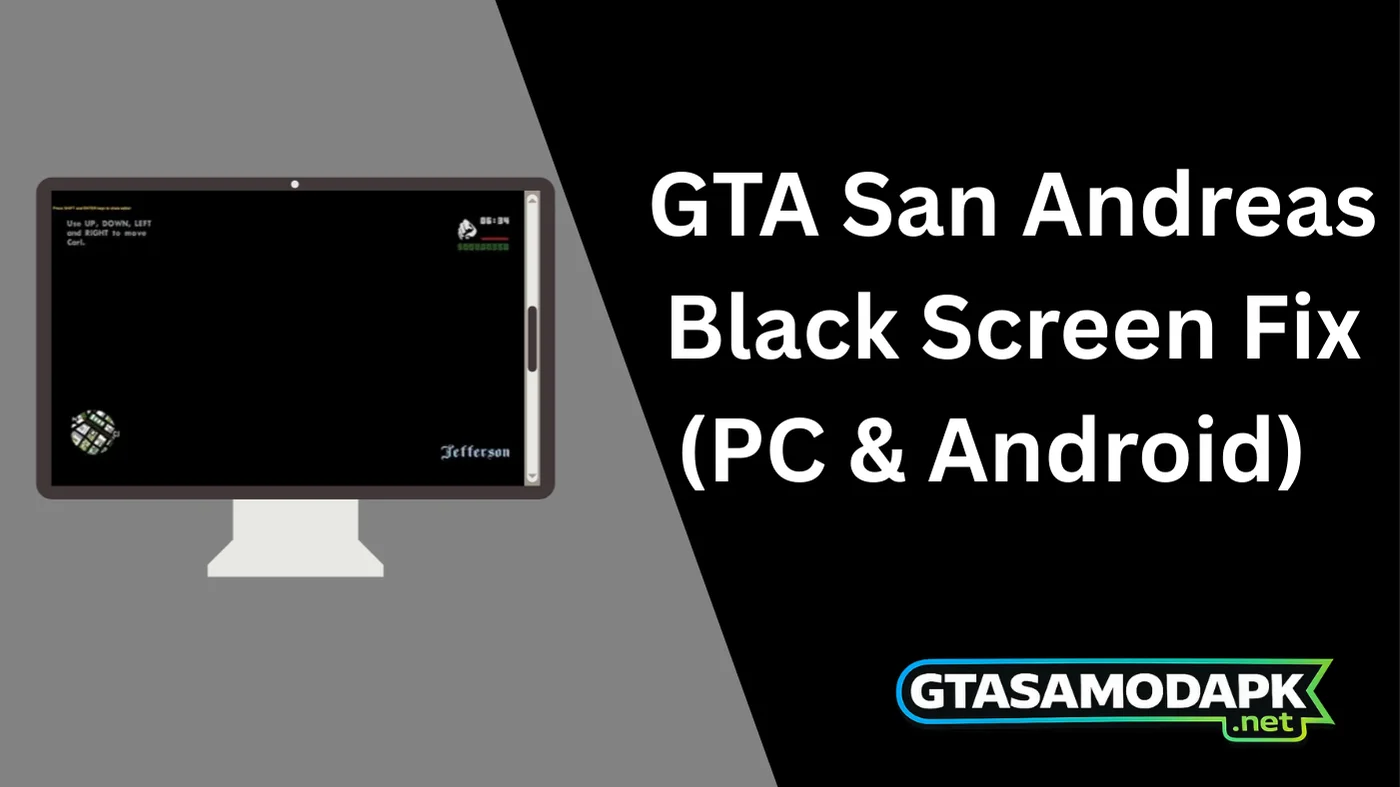
GTA San Andreas Black Screen Fix (PC & Android) – 100% Working Solutions
If you are facing the GTA San Andreas black screen issue, where the game opens but shows nothing, freezes, or crashes after launch, you’re not alone. This is one of the most common problems reported by both PC and Android users, especially on modern systems.
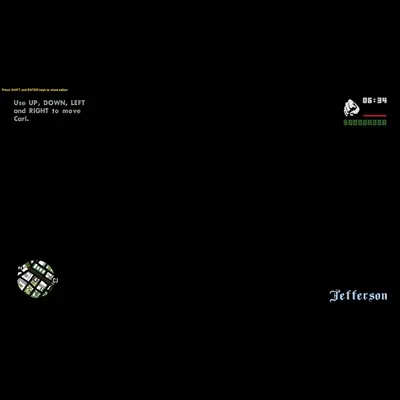
The issue usually appears when the game fails to load graphics properly or conflicts with your device settings. Sometimes the screen stays completely black, while in other cases the game runs in the background without displaying anything, consuming CPU/GPU but showing no visuals.
In this complete guide, you will learn why this problem happens, along with clear point-based reasons and solutions, and detailed step by step fixes for both PC and Android users. Follow each section carefully and test the game after every fix.
Why does GTA San Andreas Shows Black Screen After Launch?
GTA San Andreas was originally developed for older systems, and when it runs on newer hardware or updated Android versions, compatibility issues can occur. These issues mainly affect graphics rendering, system libraries, and display settings, especially when modern drivers try to interpret legacy DirectX 9 instructions.
Main Reasons (Problems)
- Outdated graphics drivers that fail to render the game properly
- Missing DirectX 9 components required by the game
- Corrupted or incomplete game installation files
- Broken or unsupported mods (especially CLEO scripts)
- Incorrect resolution or full screen display settings
- Missing or damaged DLL files, such as d3d9.dll
- Incorrect APK or OBB file placement on Android
- Device compatibility issues or low system resources
Each of these issues interrupts the game’s ability to initialize graphics, which results in a black screen instead of gameplay.
Common GTA SA Black Screen Problems (Real User Issues)
Different users experience the black screen issue in different ways depending on their platform and game version. Recognizing your exact symptom helps you apply the right fix faster.
On PC, some users report that the game launches but shows a black screen without sound. Others face instant crashes, or the game runs in the background but does not appear on screen. In some cases, the cursor changes, but no game window appears, especially on Windows 10/11 systems.
On Android, the problem often occurs after the Rockstar logo, where the game freezes or closes automatically. Some devices show a black screen with sound, while others fail to load entirely due to incorrect OBB placement or incompatible APK versions.
Identifying your exact issue helps in applying the correct fix more efficiently.
Quick Fix for GTA San Andreas Black Screen (Try First)
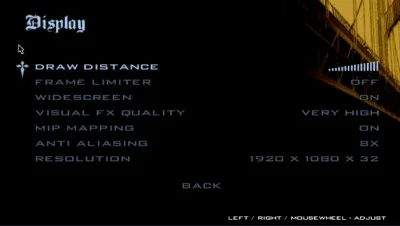
Before applying advanced methods, try some quick fixes. These simple steps solve the issue in many cases and take only a few minutes.
Quick Solutions
- Restart your device to remove temporary glitches
- Run the game as Administrator (PC users) to grant full permissions
- Press Alt + Enter to switch between full screen and windowed mode
- Lower your screen resolution to 1024×768 or 1280×720 for better compatibility
- Close unnecessary background applications to free system resources
These quick fixes address basic conflicts related to display and permissions.
How to Fix GTA San Andreas Black Screen on PC?
Fixing this issue on PC requires applying the right combination of updates and settings. Each solution below addresses a specific cause of the problem and should be followed carefully.
PC Solutions (Step by Step)
- Update your graphics drivers from official NVIDIA, AMD, or Intel websites to ensure compatibility with older games
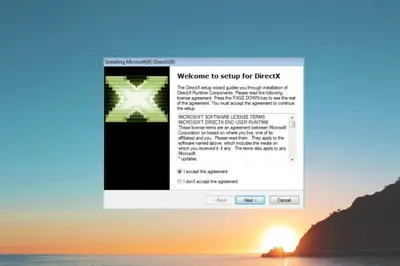
- Install DirectX 9 (June 2010) even if a newer version is already installed, as GTA SA depends on older libraries
- Install all Visual C++ Redistributables (both x86 and x64 versions) to avoid runtime errors
- Enable Compatibility Mode (Windows XP SP3 or Windows 7) to simulate an older environment
- Run the game as Administrator for proper access to system files
- Replace the d3d9.dll file in the game folder to fix rendering issues caused by corrupted DLLs
- Verify game files if you are using the Steam version to fix missing or broken files automatically
- Remove all mods and CLEO scripts to avoid conflicts with the original game engine
- Delete the gta_sa.set file to reset the display and configuration settings
- Adjust the resolution and disable full-screen optimizations from the properties
Applying these steps properly resolves most PC related black screen problems and improves overall stability.
If your current game version is causing issues, you should use a clean and optimized setup. A properly configured version helps prevent black screen, crashes, and compatibility errors on modern systems.
➡️ Download GTA San Andreas for PC (Black Screen Fix Version)
Advanced Fix: Use DXVK (Vulkan) to Fix Black Screen
If the issue still persists, you can use DXVK as an advanced solution. This method is especially useful for modern PCs with newer GPUs, where DirectX 9 compatibility is limited.
Advanced Solution (DXVK Method)
- Download the latest DXVK package from a trusted source
- Extract the files properly
- Copy the d3d9.dll file into your GTA San Andreas game directory
- Launch the game normally and test performance
DXVK converts DirectX 9 graphics into Vulkan, which improves compatibility, reduces crashes, and often completely fixes black screen issues on newer systems.
How to Fix GTA SA Black Screen on Android? (APK & Mod)
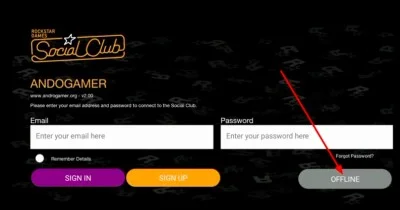
Android users usually face this issue due to incorrect installation, outdated versions, or incompatible devices. Proper setup is essential for smooth gameplay.
Android Solutions (Step-by-Step)
- Clear cache and app data from device settings to remove temporary errors
- Delete and reinstall the APK and OBB files properly to fix installation issues
- Ensure OBB files are placed in the correct directory (Android > OBB > game folder)
- Use the latest version of the game for better compatibility with new Android updates
- Avoid outdated or broken Mod APK versions that may cause crashes
- Download files only from trusted sources to prevent corrupted installations
- Restart your device after installation to refresh system memory
- Check device compatibility (RAM, GPU, Android version) before installing
These steps ensure that the game loads correctly and runs without black screen issues on most devices.
You can download a properly optimized version of GTA San Andreas for Android that works without black screen issues. Make sure to install the correct APK and OBB files to avoid errors.
What Causes the GTA San Andreas Black Screen Issue?
To fully understand and prevent the issue, it is important to look at the causes in detail and categorize them.
Detailed Causes (Points)
- Software Issues:
- Missing DirectX files required by the game
- Outdated graphics drivers are causing rendering failures
- Corrupted or incomplete game installation
- Hardware Issues:
- Low RAM or unsupported GPU
- Device not meeting minimum system requirements
- User-Related Issues:
- Incorrect APK/OBB installation on Android
- Use of incompatible or outdated mods
- Wrong display or resolution settings
By identifying the correct category, you can apply the most effective solution quickly.
Fixing graphics drivers and installing required libraries usually resolves the issue quickly.
Also, verify game files and remove mods if the game still fails to launch properly.
Resetting game settings and removing mods usually fixes the crash instantly.
Using the latest version and checking device compatibility also helps prevent the issue.
Verifying game integrity through Steam usually fixes the problem automatically.
Final Words
The GTA San Andreas black screen issue may seem frustrating, but it is completely fixable when you follow the right steps. By understanding the causes and applying the solutions provided in this guide, you can resolve the problem on both PC and Android devices.
Start with basic fixes and move to advanced solutions if needed. Keeping your system updated, using correct installation methods, and avoiding unstable mods will help prevent future issues.
With the right approach, you can enjoy GTA San Andreas smoothly without any black screen interruptions.